Get Started
Company
Copyright © 2022. Logaholic Web Analytics BV

Select Log File Analysis (FTP Download) from the Data Collection tab when your website log files are not located on the same server as the Logaholic analytics software. Selecting this tab opens a form where you can enter information about the remote location of your website log files and how they will be copied to the location of your Logaholic software where they can be used as source data for your web analysis.
In order to copy these remote log files, Logaholic uses an FTP (File Transfer Protocol) client.
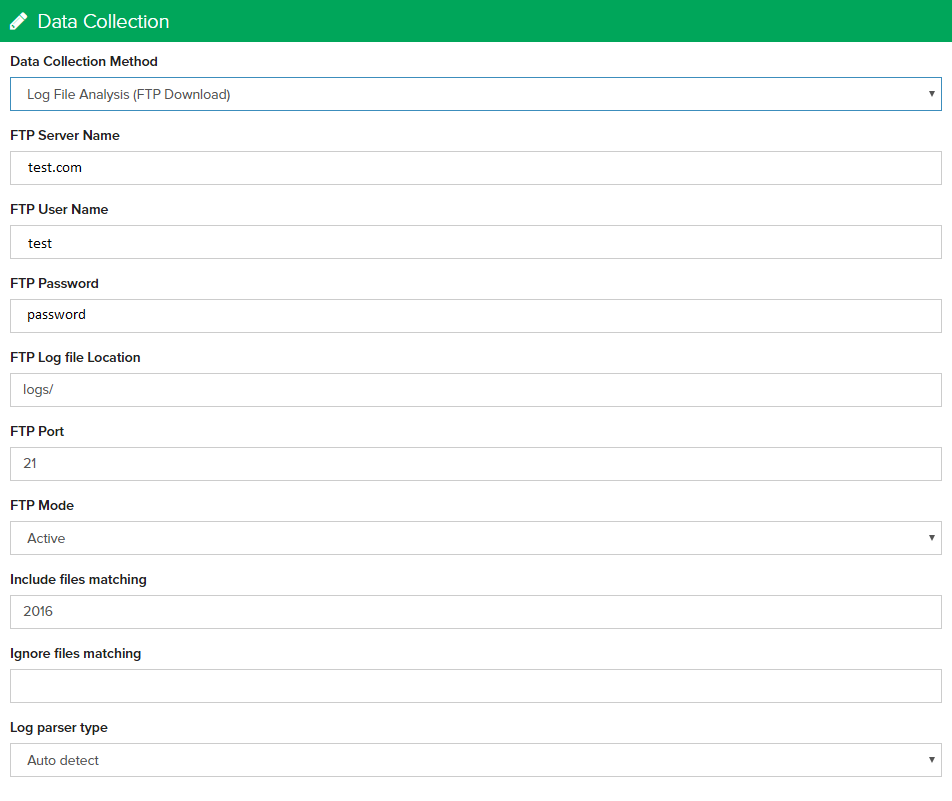
Enter the address (URL) of the FTP Server where your log files are stored.
A local copy of the log file will be saved in your Logaholic folder as “\files\profilename.log\”
You will receive a warning if your upload directory is located within the web server’s document root folder, e.g., C:\wamp\www\logaholic\files\. For security reasons, we highly recommend that you change your upload directory to a path that is outside your web root (i.e. a directory that can not be accessed via the web, but can be accessed by PHP through the open_basedir setting in your PHP.ini file). You can then change the upload directory location setting on Logaholic’s Global Settings tab
Enter your FTP Server Login User Name.
Enter your FTP password.
Enter the full FTP directory path, including the filename.
Example: /DOMAIN/logs/access_log.log
As of version 2.7.7+, Logaholic supports collecting and analyzing data from multiple log files. Use this option if your log files are recorded and archived into individual files by period. Logaholic will then import all of these files from your log file directory.
To scan the entire directory for multiple files, be sure to end the address in the “Log file location” field with a forward slash (/).
Check “Recursively search directories” to include subdirectories when scanning for log files.
Enter a Filter (Optional) and indicate whether you want to only analyze files that match:_____________ but not__________.
The Filter can be used to avoid unwanted files in the directory to be analyzed. For example, if all your log file name start with “access_log,” enter that text into the filter field. Only files that match the first field will be analyzed, except if the file also matches the second field (“but not”). Leave both fields blank if all files are to be analyzed.
If you require more complex filtering, you can also use wildcards * and regular expresssions to reference your log file names, e.g. (^www\.[xyz|abc.xyz].log.*)
Click “Save” to save the changes you’ve made to your Javascript Based Tracking configuration.
Click the “Save Changes” button at the top of the page to save your changes, or click the “Cancel” button to undo your changes.
